![sonicwall.jpg]](https://kb.mspcentric.io/hs-fs/hubfs/sonicwall.jpg?height=36&name=sonicwall.jpg)
Setup
Navigate to Admin > Security > Roles.
Select New to create a new Security Role.
Give the Security Role a Name, and set the Role Type to Internal
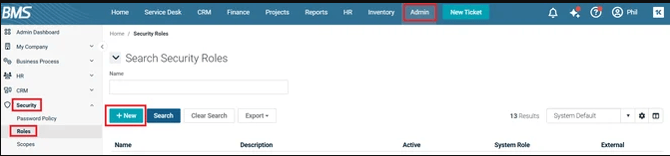
Click Save(S) in order to set permissions.
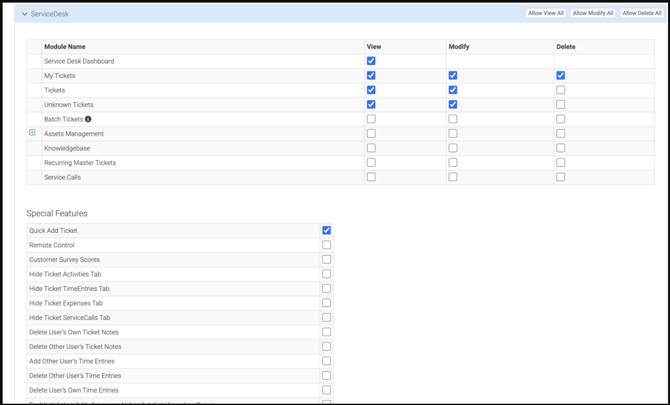
Set permissions for tickets:
- Service Desk Dashboard: view
- My Tickets: view, modify, delete
- Tickets: view, modify, delete
- Unknown Tickets: view, modify, delete
Under Special Features:
- Quick Add Ticket: check the box.
In the Admin section, ensure Special Features Has API Access is checked.
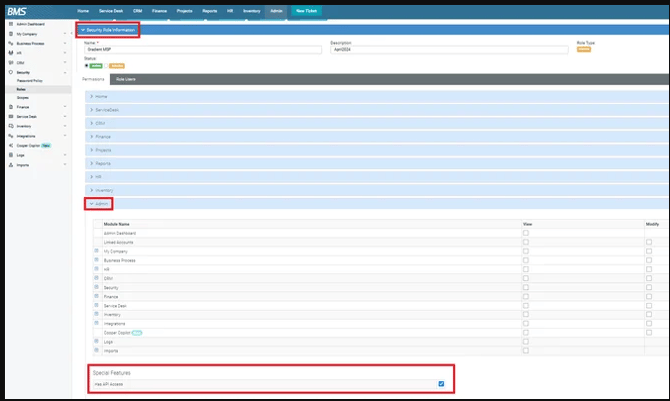
Select Save (S) to save the Security Role.
Create API Employee
Navigate to Admin > HR > Employees.
Select New (N) to create a new API Employee.
Set the New Employee User Type API Employee and assign the Security Role that you created in the previous steps.
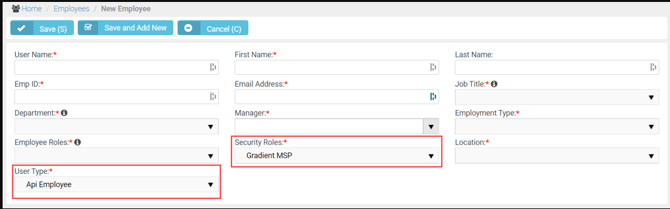
Click Save (S) to complete the creation of the New Employee.
An email will be sent to the email address listed in the employee creation steps. This email will contain the User Name, Password, and Company to be used within Gradient.
Head back over to SonicWall and input your Username, Password, Company Name (Tenant ID), and Fully Qualified Domain Name (kaseya.example.com) into the Setup Wizard. The wizard will run the initial sync, which may take a few minutes, before prompting you to continue to your dashboard.
Congratulations, you've successfully connected your PSA!